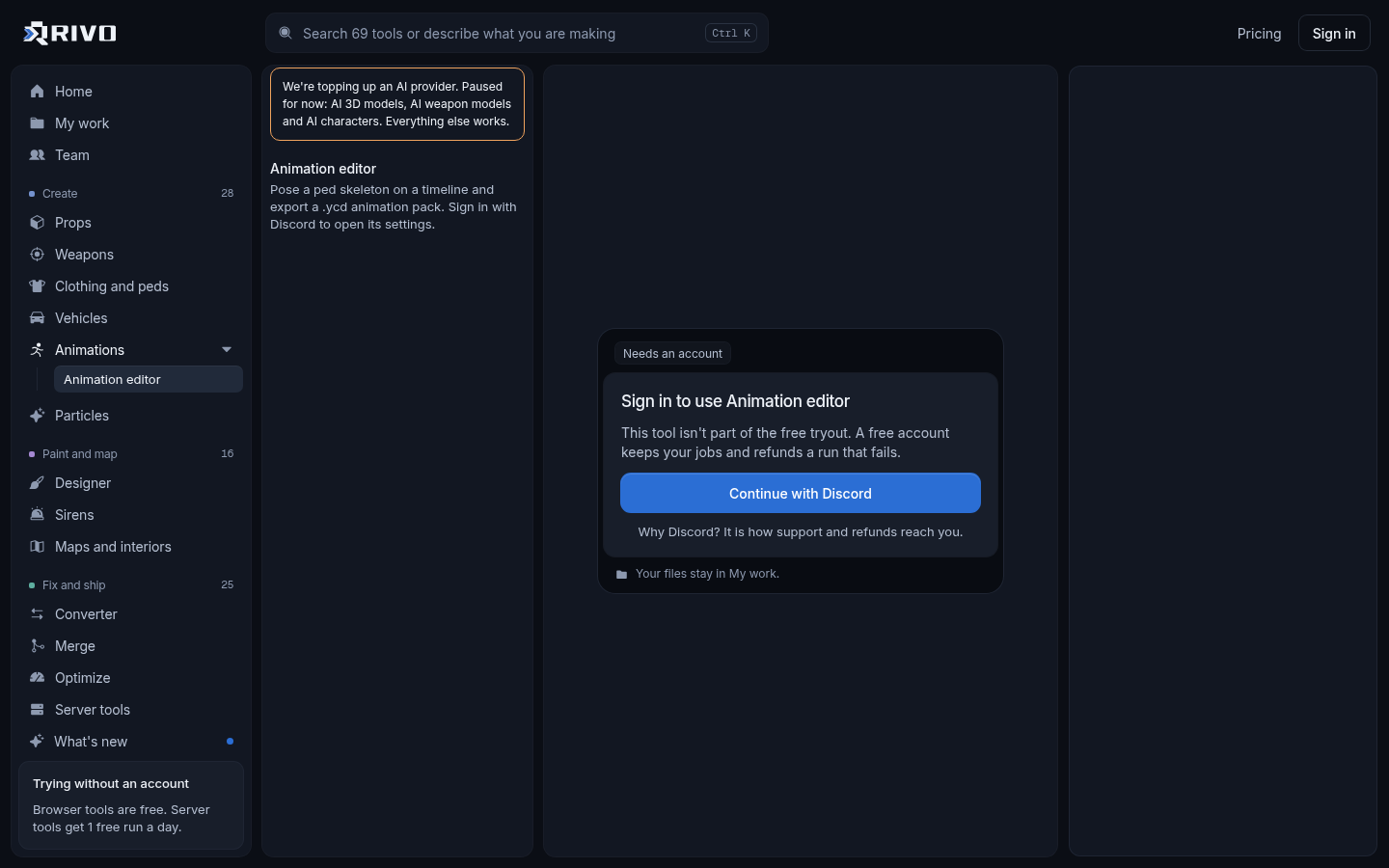
A FiveM animation maker is a tool that builds custom character animations for GTA V peds and exports them as a .ycd animation dictionary, the file format the game streams and plays. The Rivo animation creator does this in your browser: you pose the ped skeleton on a timeline, preview the motion on a freemode ped and export a .ycd pack for emotes and scenes, with no Blender step.
Once you have the .ycd, you drop it in a resource's stream folder, ensure the resource and play it with a few lines of Lua or through your emote menu. The rest of this guide walks through each stage.
What a FiveM animation actually is
GTA V stores animations in dictionaries. Each dictionary is a .ycd file, and each one holds one or more clips. When a script plays an animation it asks for two names: the dictionary and the clip inside it.
Dictionary: the .ycd file name without the extension, for example my_emotes.ycd becomes my_emotes.
Clip: the named animation inside that dictionary, such as a wave or a lean.
Ped: the character that plays it. Animations drive the GTA skeleton's bones, so any ped built on that skeleton can use them.
Because the clips move bones rather than a specific model, a custom animation works on the freemode player ped and on addon peds rigged to the same skeleton.
A note on animated banners and logos
Some people search for a FiveM animation maker when they want an animated banner or logo for Discord, Tebex or a loading screen. That is a different job, done in a graphics or video editor. The Rivo animation creator makes in-game character motion. If you need still marketing images for a vehicle, the vehicle showcase images tool renders a branded pack for Tebex and Discord.
Make the animation
Plan the motion before you open the tool. Write down the start pose, the key moments and the end pose. A ten second emote rarely needs many keyframes; the tool fills in the motion between them.
Open the animation creator and pose the skeleton for your first keyframe. Start with the spine and hips, then shoulders, arms and hands, then the head.
Move along the timeline and set the next keyframe. Change only the bones that need to move so the rest of the body stays stable.
Play the animation back on the freemode ped and watch it at full speed. Motion that looks fine frame by frame can look rushed or floaty in playback.
Refine the timing by moving keyframes closer together for snappy moves and further apart for slow ones.
Export the .ycd animation pack and give the file a clear, unique name, since that name becomes the dictionary name in your scripts.
Tips for animations that look right in game
For looping emotes, make the last keyframe match the first so the loop has no visible snap.
If players should walk while the emote plays, keep the legs and hips still and animate only the upper body.
Keep hands in natural positions if you plan to attach a prop later, such as a cup, clipboard or sign.
Avoid extreme joint angles. They show up as stretched shoulders and broken wrists on real clothing.
Test on both a male and a female freemode ped if your server uses both.
For a deeper look at the editor itself, see the existing guide on making custom emotes with the FiveM animation creator.
Stream the .ycd on your server
A .ycd is a stream asset. FiveM streams files placed in a resource's stream folder automatically, so the resource needs very little.
resources/
  [custom]/
    my_emotes/
      fxmanifest.lua
      stream/
my_emotes.ycdfx_version 'cerulean'
game 'gta5'
author 'Your server'
description 'Custom animation dictionary'Then add the resource to server.cfg so it starts with the server:
ensure my_emotesIf you add scripts to the same resource later, the fxmanifest.lua generator can write the manifest from the folder contents.
Play the animation in game
To test it, add a small client script. It loads the dictionary, waits until it is ready and plays the clip on the player. Replace the dictionary and clip names with your own.
RegisterCommand('testanim', function()
    local dict = 'my_emotes'
    local clip = 'your_clip_name'

    RequestAnimDict(dict)
    while not HasAnimDictLoaded(dict) do
        Wait(0)
    end

    -- 49 = loop + upper body only + player keeps control
    TaskPlayAnim(PlayerPedId(), dict, clip, 8.0, -8.0, -1, 49, 0, false, false, false)
    RemoveAnimDict(dict)
end, false)

RegisterCommand('stopanim', function()
    ClearPedTasks(PlayerPedId())
end, false)Declare the script in fxmanifest.lua with client_script 'client.lua'. The flag value is a sum of options: 1 loops the clip, 16 limits it to the upper body and 32 lets the player keep control. Use 1 alone for a full-body looping pose. The native reference on docs.fivem.net lists every parameter.
Adding it to an emote menu
Most emote menus keep a list that maps a command to a dictionary, a clip and a label. Copy an existing entry, swap in your dictionary and clip names, and set the options the menu supports, such as looping or movement. Keep your .ycd resource separate from the menu so menu updates do not overwrite it.
Animation ideas for a FiveM server
If you searched for an animation list or ideas, these are custom emotes that roleplay servers get real use from:
Job idles: a mechanic leaning on a workbench, a paramedic checking a clipboard, a cashier waiting at the till.
Police gestures: traffic direction, hand on holster, radio to shoulder.
Server-branded dances or celebrations that players cannot get anywhere else.
Seated and lying poses tuned to specific furniture on your maps.
Prop poses: holding a sign, a coffee or a tool. Build the object with the prop generator and attach it to the hand bone in your script.
Character idles for custom NPCs made with the addon ped creator, which fits peds to the GTA skeleton so they play standard animations.
Troubleshooting
When a custom animation does not play, the cause is almost always one of these:
Wrong names: the dictionary must match the .ycd file name exactly, and the clip name must match the clip inside it.
Not streamed: the .ycd is outside the stream folder, or the resource is not ensured in server.cfg. Check the server console for the resource starting.
Dictionary never loads: HasAnimDictLoaded stays false when the name is wrong. Print the name and compare it to the file.
Two resources stream a .ycd with the same name, so only one wins. The asset conflict finder lists stream files shared across resources.
The ped snaps back instantly: a duration of -1 with no loop flag plays once. Add flag 1 for a loop or 2 to hold the last frame.
Manifest problems in a combined resource: run it through the fxmanifest.lua checker.
Why use a browser animation maker
The traditional route is Blender with GTA V add-ons, a rig import and an export step that has to match the game's format. That works but takes setup and practice. A browser tool built around the GTA ped skeleton skips the rig work and exports a .ycd directly, which suits server owners who want a handful of emotes rather than a full animation pipeline.
You can read more about what the tool covers on the FiveM animation creator page, then build your first clip, stream it and test it with the command above.