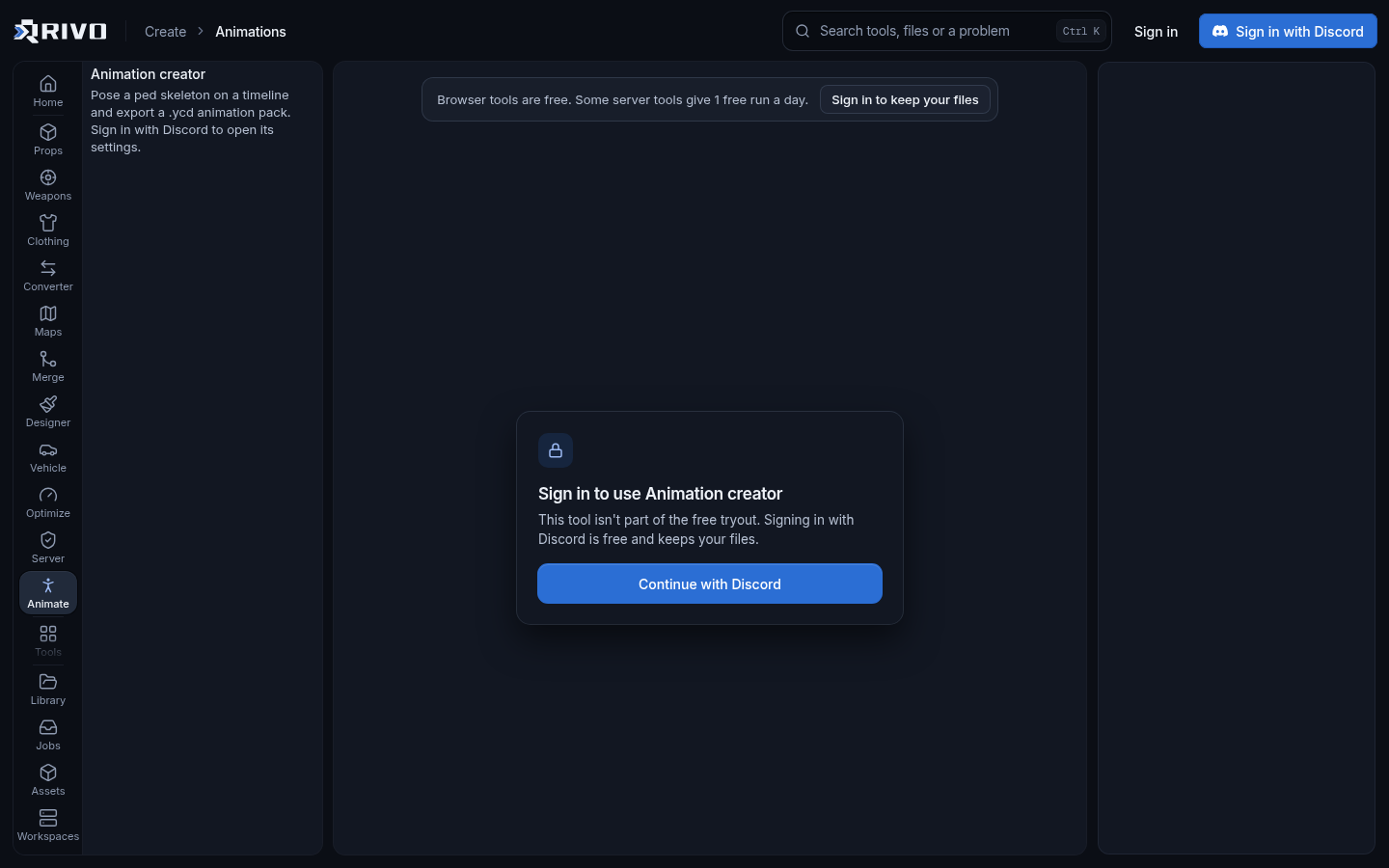
A FiveM animation creator lets you build your own GTA V animations and stream them on your server as emotes or scene poses. With Rivo's FiveM animation creator you pose the GTA V ped skeleton on a timeline in your browser, preview the motion on a freemode ped and export a .ycd animation dictionary. There is no Blender step.
This guide covers the full workflow: making the animation, packing the .ycd into a resource, playing it from a script or emote menu, and fixing the usual reasons a custom animation will not play.
What the animation creator does
GTA V stores animations in .ycd files, called clip dictionaries. Each dictionary holds one or more clips, and the game plays a clip by dictionary name plus clip name. Making these files has traditionally meant a 3D package, a rig and an export plugin.
The animation creator removes that setup. You work directly on the GTA V ped skeleton, so the bones you move are the same bones the game animates. You set poses at keyframes, play the motion back on a freemode ped to check it, and export a .ycd pack that FiveM can stream.
A note on AI animation generators
Many people search for a FiveM animation creator with AI. The Rivo animation creator is a keyframe tool: you pose the skeleton yourself. That gives you exact control over hand positions, timing and where the pose ends, which matters for emotes that need to line up with props or other players. If you want AI to build a character instead, the addon ped creator generates a ped from a description or picture and fits it to the GTA skeleton so it plays every game animation, including your custom ones.
How to make a custom FiveM animation
Open the animation creator and plan the motion. Decide whether it loops (an idle, a dance) or plays once and holds (a salute, a sit-down).
Pose the skeleton at the first keyframe. This is your start pose, so keep it close to a neutral stance if the emote should blend in smoothly from walking.
Move along the timeline and pose the skeleton at each following keyframe. Add keyframes where the motion changes direction, not on every frame.
Play the animation back on the freemode ped. Watch it from several angles and look for limbs passing through the body or snapping between poses.
Refine the timing by moving keyframes closer together for fast motion or further apart for slow, relaxed motion.
For a looping animation, make the last pose match the first so the loop has no visible jump.
Export the .ycd animation pack and note the dictionary and clip names, because your scripts will need them exactly.
Keyframing tips that make animations look natural
Start with the hips and spine, then the arms, then hands and head. Big body motion first makes the small details easier to place.
Offset the timing of arms and head slightly so everything does not move at once. Real motion overlaps.
Keep feet planted unless the animation is meant to step. Sliding feet are the most obvious sign of a homemade emote.
If the emote will be upper body only in game, focus your keyframes on the spine, arms and head, since the legs will be overridden by walking.
Preview at normal speed often. A pose that looks fine on its own can feel stiff in motion.
Stream the .ycd on your FiveM server
A .ycd is a streamed asset, like a .ydr or .ytd. Any file inside a resource's stream folder is streamed to clients automatically, so the setup is short.
Resource folder layout
resources/
  my_emotes/
    fxmanifest.lua
    client.lua
    stream/
my_emotes.ycdThe dictionary name the game uses is the .ycd file name without the extension. In this example the dictionary is my_emotes. If you rename the file, update every script that references it.
fxmanifest.lua
fx_version 'cerulean'
game 'gta5'

client_script 'client.lua'You do not need to list the .ycd in the manifest. The stream folder handles it. If you would rather not write the manifest by hand, the fxmanifest.lua generator reads your folder and writes one for you.
Play the animation from a script
To play a clip, the client loads the dictionary with RequestAnimDict, waits until it is loaded, then calls TaskPlayAnim. Replace the clip name below with the one from your export.
local dict = 'my_emotes'
local clip = 'your_clip_name'

RegisterCommand('myemote', function()
    local ped = PlayerPedId()
    RequestAnimDict(dict)
    while not HasAnimDictLoaded(dict) do
        Wait(0)
    end
    -- flag 49 = loop + upper body only + player can move
    TaskPlayAnim(ped, dict, clip, 8.0, -8.0, -1, 49, 0, false, false, false)
    RemoveAnimDict(dict)
end, false)

RegisterCommand('stopemote', function()
    ClearPedTasks(PlayerPedId())
end, false)The flag argument controls how the clip plays. Common values: 1 loops, 2 holds the last frame, 16 plays on the upper body only, 32 lets the player keep control. Add them together to combine, so 49 is 1 + 16 + 32. Full parameter details are in the FiveM natives reference.
Ensure the resource
ensure my_emotesAdd that line to server.cfg after any framework resources, then restart the server or run ensure my_emotes from the console.
Add the animation to an emote menu
Most emote menu resources define each emote as a dictionary name, a clip name, a label and some playback options in a config file. Add a new entry with your dictionary and clip names and the same kind of options you would pass to TaskPlayAnim, such as looping or upper body only. Keep your .ycd in its own resource rather than dropping it into the menu's folder, so updating the menu never deletes your animations.
Finding a list of GTA V animations
If you searched for an animation list, you may only need a vanilla clip. GTA V ships thousands of animations, and every one is played the same way: dictionary name plus clip name in TaskPlayAnim. Two well known examples:
Hands up: dictionary missminuteman_1ig_2, clip handsup_base.
Smoking idle: dictionary amb@world_human_smoking@male@male_a@base, clip base.
Community animation lists and the emote menus themselves are a good place to browse vanilla names. When nothing in the base game fits, such as a server-specific salute, a gang sign or a pose that has to line up with a custom prop, that is when building your own in the animation creator pays off.
Troubleshooting custom animations
Nothing happens: check the dictionary name matches the .ycd file name exactly, and the clip name matches the export. Both are case sensitive in practice, so copy them rather than retyping.
Script hangs on loading: the dictionary never streams. Confirm the .ycd is inside the stream folder and the resource is ensured. The fxmanifest.lua checker catches wrong paths and missing files.
Animation plays on some peds but not others: custom animations target the GTA V skeleton. Addon peds that are not rigged to it will not move correctly. Peds from the addon ped creator are fitted to the GTA skeleton.
Legs stop when walking: you used an upper body flag. Remove 16 from the flag if the whole body should animate.
Two resources ship a file with the same name: only one wins. The asset conflict finder lists stream files shared across resources.
Loop has a jump: make the final keyframe match the first pose and export again.
Pair animations with custom props and effects
Emotes often need something in the hand. The FiveM prop generator turns a photo, a prompt or a GLB into a streamed prop you can attach to a ped bone while your animation plays. For a visual flourish, the particle creator lets you recolor and retime GTA V particle effects to trigger alongside an emote.
To see what the tool covers before you start, read the animation creator overview. Then pose your first keyframe, export the .ycd, drop it in a stream folder and ensure the resource. Once the first one works, every new emote is the same three steps.