A FiveM prop is any static GTA V object you can spawn by name: benches, cones, crates, signs and furniture. The game ships with thousands of them. You can spawn them with a script or a prop menu, place them permanently with a map, or stream your own custom models that spawn by name like any vanilla prop.
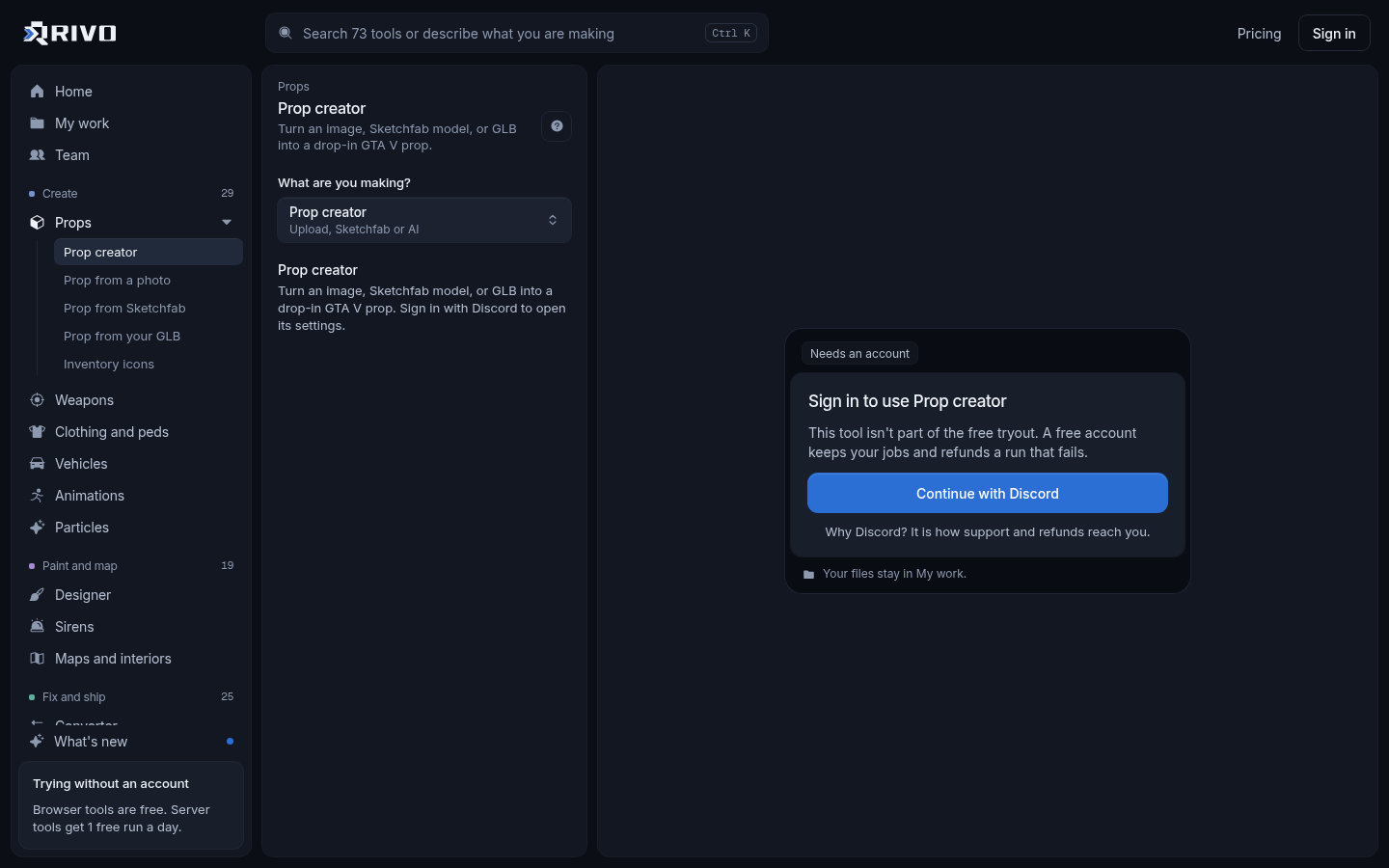
If you need an object GTA V does not have, the fastest route is the FiveM prop generator. Give it a photo, a text prompt, a Sketchfab model or your own GLB, and it builds a streamed prop resource with textures and collision. The rest of this guide covers prop names, spawning, permanent placement, custom props and keeping prop packs light.
Finding FiveM prop names
Every prop has a model name such as prop_roadcone02a. That name is what scripts, prop menus and map editors use. Most vanilla names start with prop_, but not all of them do.
To find the right one, browse a visual list rather than guessing from names. The GTA V asset gallery guide shows how to browse clothes, hats and props with pictures, which is the quickest way to match an object you saw in game to its model name.
Search by type: bench, cone, barrier, crate, chair, table.
Note the full name, including suffixes like 01a or 02b, since each is a different variant.
Check the size in game before building a scene around it. Some props are much larger or smaller than the name suggests.
Spawning props with a script
A prop spawner or prop menu is just a script that loads a model and creates an object. If you want to understand what those menus do, or write a small command yourself, this is the core of it in client-side Lua:
RegisterCommand('spawnprop', function(_, args)
    local model = joaat(args[1] or 'prop_roadcone02a')
    if not IsModelInCdimage(model) then
        print('Unknown prop model')
        return
    end
    RequestModel(model)
    while not HasModelLoaded(model) do
        Wait(0)
    end
    local ped = PlayerPedId()
    local pos = GetOffsetFromEntityInWorldCoords(ped, 0.0, 1.5, 0.0)
    local obj = CreateObject(model, pos.x, pos.y, pos.z, true, false, false)
    PlaceObjectOnGroundProperly(obj)
    SetModelAsNoLongerNeeded(model)
end, false)Type /spawnprop prop_roadcone02a in game and a cone appears in front of you. The same code works for custom props once their resource is streamed, because they spawn by name too. Full native references live in the FiveM docs.
Props spawned this way disappear when the server restarts unless your script saves and recreates them. For permanent scenery, use a map instead.
Placing props permanently with a map
Permanent props belong in a .ymap file, which lists each entity, its model name, position and rotation. The server streams it and every player sees the same props without any script running.
Build your scene in Menyoo or Map Editor and save it as XML.
Convert the XML with the XML to YMAP converter to get a binary .ymap.
Put the .ymap in a resource's stream folder and ensure the resource in server.cfg.
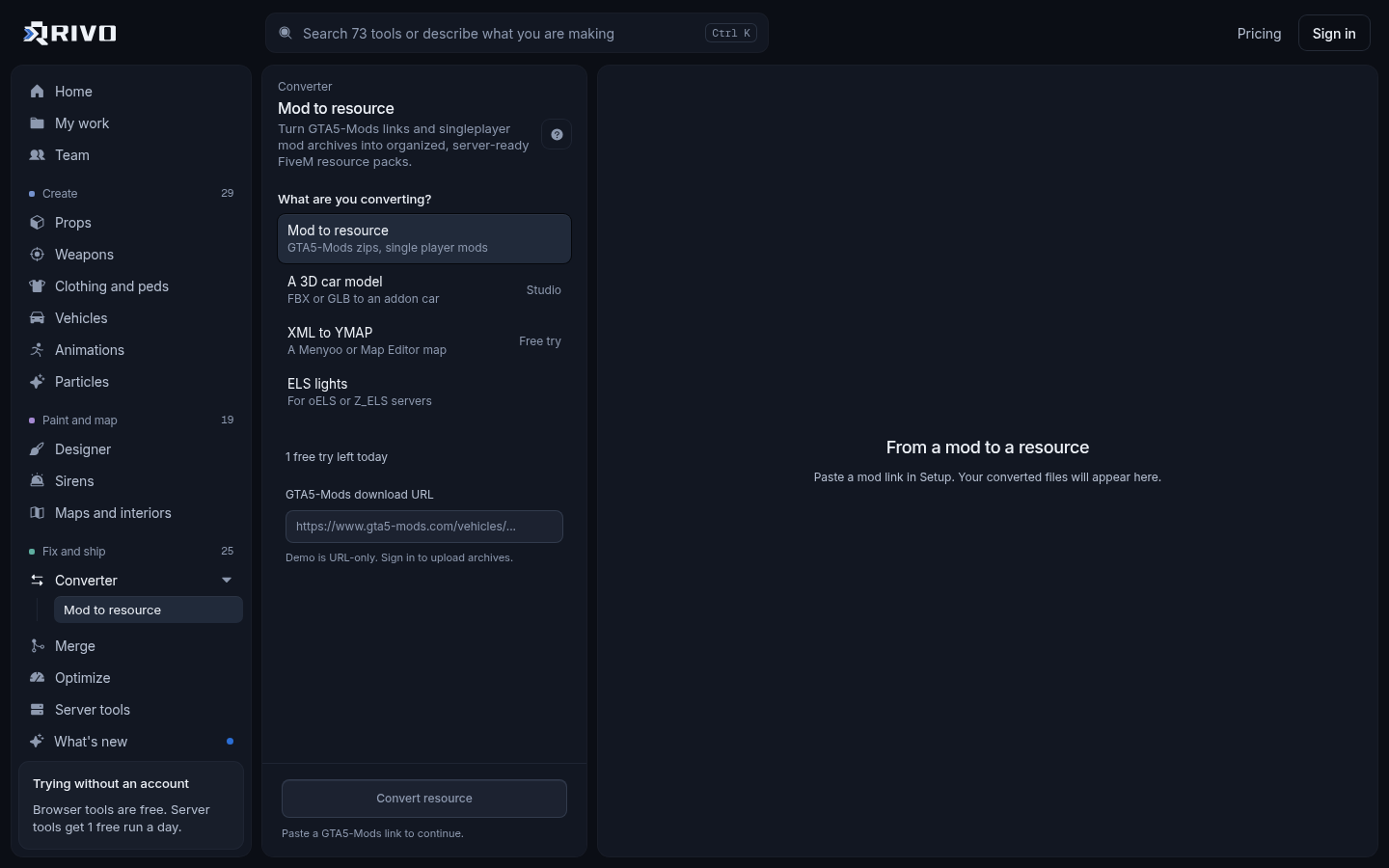
If you end up with many small maps, combine them with the YMAP merger so fewer files stream.
Making custom FiveM props
A custom prop needs a few pieces: a drawable (.ydr) with the mesh, textures (embedded or in a .ytd), collision so players do not walk through it, and a .ytyp archetype file that registers the model name with the game. Getting all of that right by hand is where most people get stuck.
The browser route
Rivo's prop generator handles the conversion, textures, collision and packing in one flow. You pick a source and get back a resource that spawns by name.
Pick a source: a photo or a description, a Sketchfab link, or a GLB you already have.
Check the model in the 3D preview, then set its name and size.
Download the resource and add it to your server.cfg.
Each source also has its own focused page if you already know which you want:
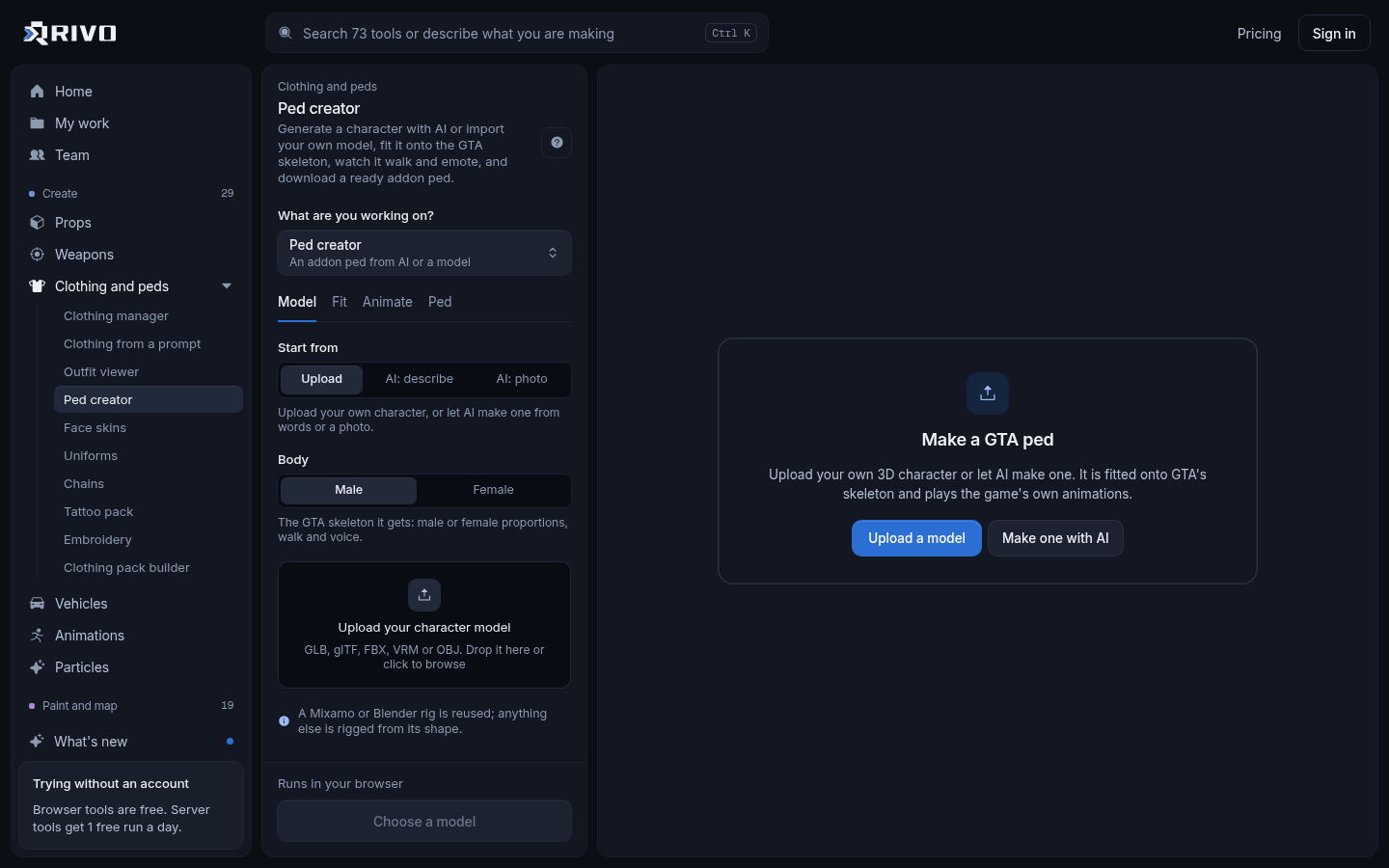
AI prop generator: describe the object or upload a photo, review the generated 3D model and generate again if it is not right.
Sketchfab to FiveM prop converter: paste a downloadable Sketchfab link, preview it and adjust the scale. No Blender or ZModeler step.
GLB to FiveM prop converter: drop a GLB or glTF you made or bought, check it in 3D and set the prop name.
If you want "free" props, Sketchfab is a good place to look, but only use models whose licence allows it and credit the author where the licence asks. Do not convert models you do not have the right to use on a server.
The Blender route
If you want full control, you can model in Blender and export GTA V formats with the community Sollumz add-on. You build the mesh, set up GTA shaders and materials, create a collision bound, and export the drawable and archetype yourself. It is more work and has a learning curve, but it suits complex props where you want hand-tuned LODs and collision. A common middle path is to model in Blender, export a GLB, and let the GLB converter handle the GTA side.
What a custom prop resource looks like
Whichever route you take, a prop resource usually follows this layout. Files in the stream folder are streamed automatically.
my_props/
  fxmanifest.lua
  stream/
    my_props.ytyp
    my_crate.ydr
my_crate.ytdThe .ytyp has to be declared so the game loads the archetypes. A minimal manifest looks like this:
fx_version 'cerulean'
game 'gta5'

data_file 'DLC_ITYP_REQUEST' 'stream/my_props.ytyp'Then add the resource to server.cfg:
ensure my_propsIf a prop will not spawn, the manifest is a common culprit. The fxmanifest.lua checker compares the manifest against the real files and flags wrong paths and undeclared data_files. The fxmanifest.lua generator can write one from scratch for a resource folder.
Prop packs: merging, conflicts and size
Prop packs grow quickly, and a few habits keep them from causing trouble in game.
Combine archetypes: if you have several packs, the YTYP merger puts them into one file and lets you check for duplicate archetype names.
Find name clashes: two resources streaming a file with the same name means only one wins. The asset conflict finder lists every shared stream asset across your resources.
Shrink textures: oversized textures in props cause texture loss and slow joins. The prop optimizer shrinks textures embedded in .ydr files without touching the geometry, and the texture optimizer does the same for .ytd files.
Check overall load: the server load checker ranks resources by size so you know which pack to optimize first.
Props as inventory items
Many servers use props as usable items: a crate you can pick up, a tool you hold, a deployable sign. Once the prop exists, it needs an icon in your inventory. The inventory icon generator renders transparent PNGs from a game prop, your own model or a photo, sized for ox_inventory and qb-inventory, so the item looks the same in the inventory as it does in the world.
Quick checklist
Look for a vanilla prop first and note its exact model name.
For temporary placement, spawn it by name with a script or prop menu.
For permanent scenery, build a map and stream it as a .ymap.
If no vanilla prop fits, make a custom one from a photo, prompt, Sketchfab link or GLB.
Declare the .ytyp in fxmanifest.lua and ensure the resource in server.cfg.
Optimize textures and check for name clashes before the pack goes live.
To see everything the prop tool supports before you start, read the FiveM prop generator overview.