Open Vehicle Stripe Creator · All tool guides
Before you start
No source file is required. Decide the canvas size and the stripe’s shape.
Step by step
- Choose a preset such as BODYSIDE STEP or DUAL RACING.
- Set W and H, then choose the shape, thickness and stripe count.
- Adjust fill, outline and transparent background. Set position and rotation to fit the intended panel.
- Choose the left and right end cuts. Use the custom-shape controls for a more specific outline.
- Export PNG for a raster layer or SVG for scalable artwork.
What you get
PNG or SVG artwork to place in your livery or graphics workflow. Canvas dimensions and position determine the exported composition.
Troubleshooting
If a stripe is clipped, check its position, rotation and canvas dimensions. If the outline vanishes, increase its width or contrast against the fill.
Try the preset workflow
Choose DUAL RACING, change the fill colour and select a pointed end. Compare the result with BODYSIDE STEP before exporting.
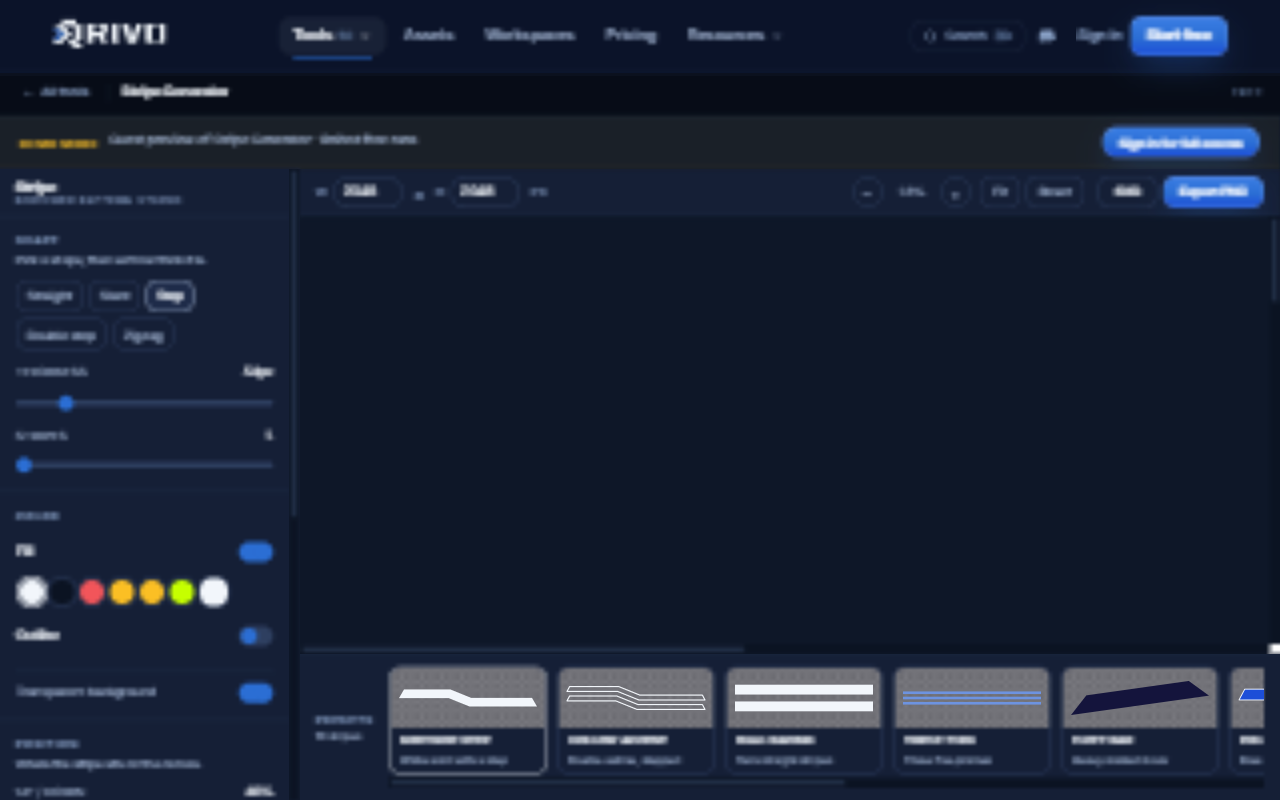
The screenshot uses the older “Stripe Generator” name.
Next steps
Read Installing and checking results before replacing a working resource. For access, failed jobs or download problems, see Troubleshooting tools.