Open Vehicle Chevron Creator · All tool guides
Before you start
No upload is needed. Decide the panel’s pixel dimensions and two main colours.
Step by step
- Choose FIRE STANDARD or another preset from the bottom strip.
- Set W and H for the output. Use Fit to fit the preview; preview zoom is separate from output dimensions.
- Choose the primary and secondary colours, then select Chevron, Diagonal, Vertical or Horizontal.
- Adjust stripe width, angle and seam direction. Scroll the left panel for mirroring, overlays and text.
- Choose Export PNG and inspect the downloaded panel at full size before adding it to your livery.
What you get
A PNG panel. It is artwork for a vehicle texture, not an automatically installed livery or a physical visibility certification.
Troubleshooting
If the pattern seems too coarse, reduce stripe width. If it faces the wrong way, change seam orientation or Flip Direction. Adjust W/H rather than browser zoom to change export size.
Try it without a file
Select FIRE STANDARD, switch from Chevron to Diagonal, then switch back. The centre seam disappears in the diagonal pattern. Try a horizontal seam and compare the direction before exporting.
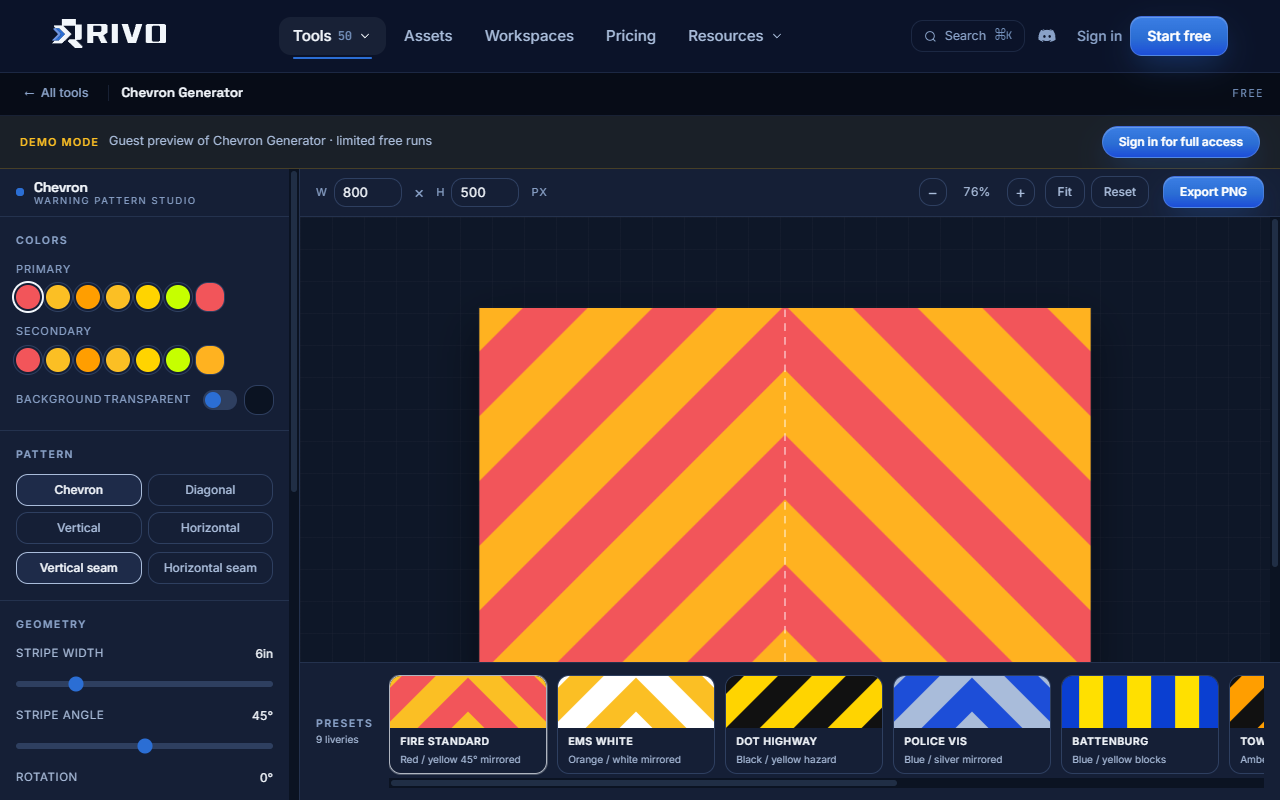
The screenshot shows the guest interface, which may use the older name “Chevron Generator”.
Next steps
Read Installing and checking results before replacing a working resource. For access, failed jobs or download problems, see Troubleshooting tools.